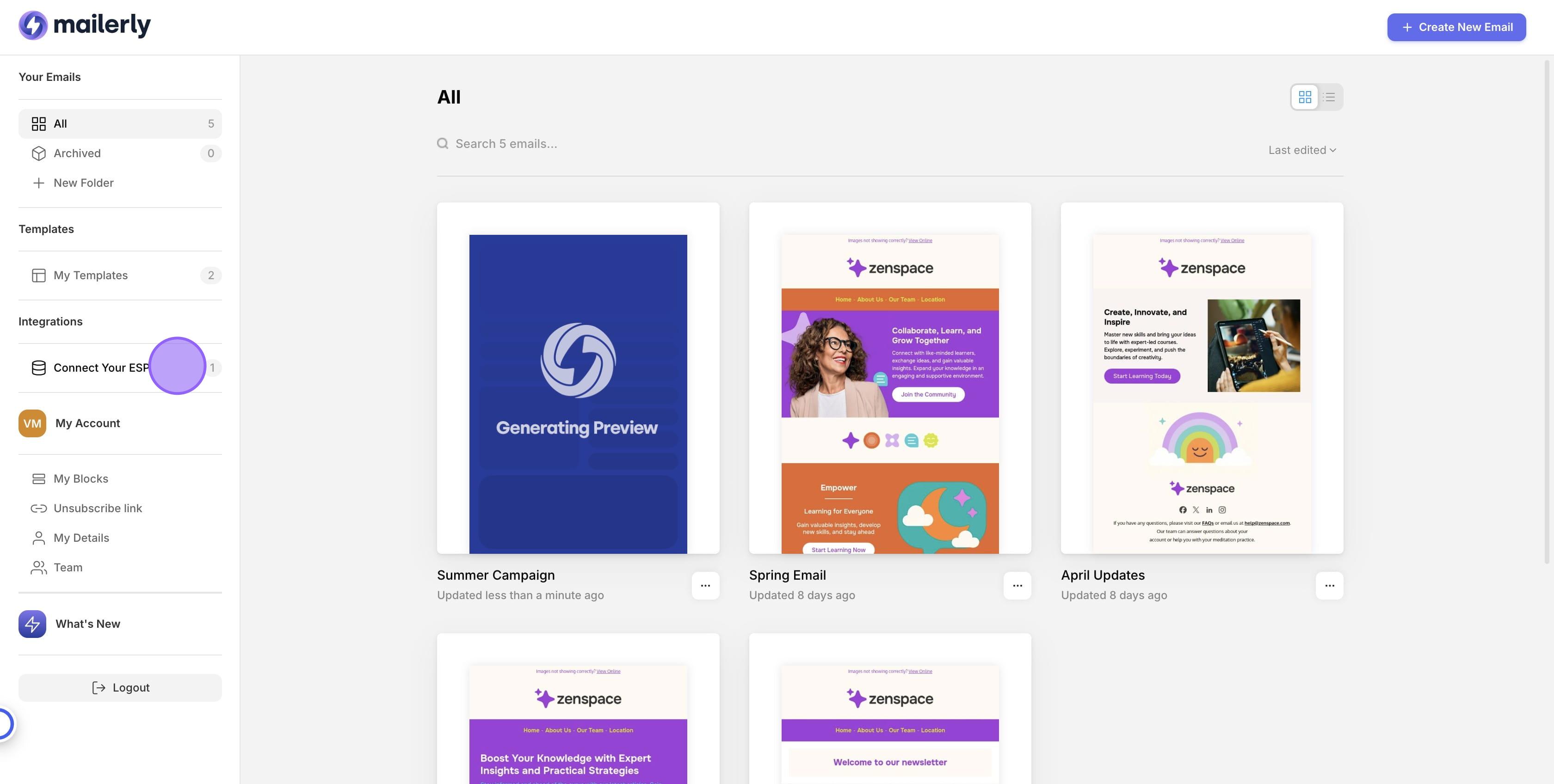
Navigate to your Mailerly Dashboard
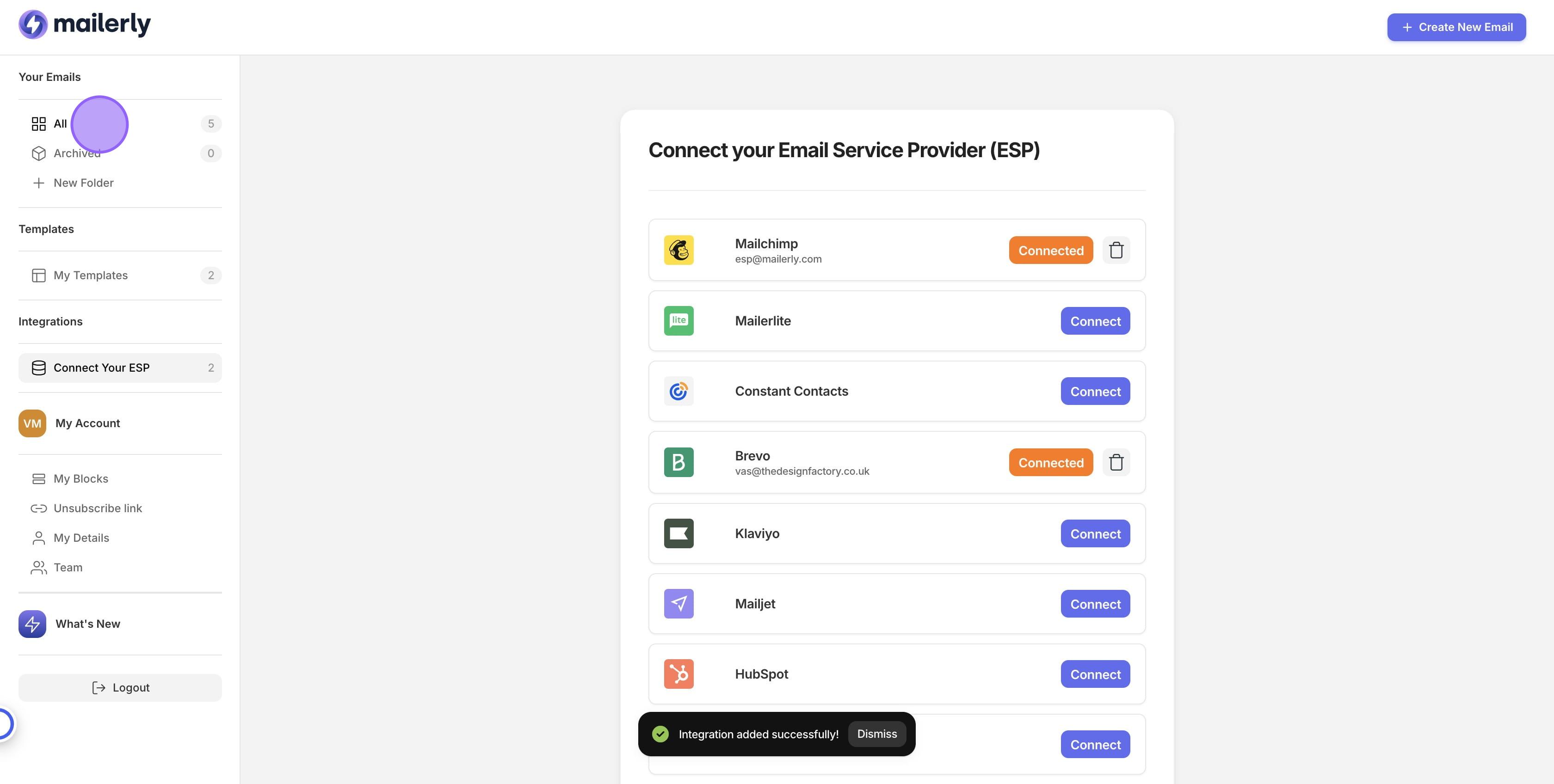
2. Click on "Connect Your ESP"
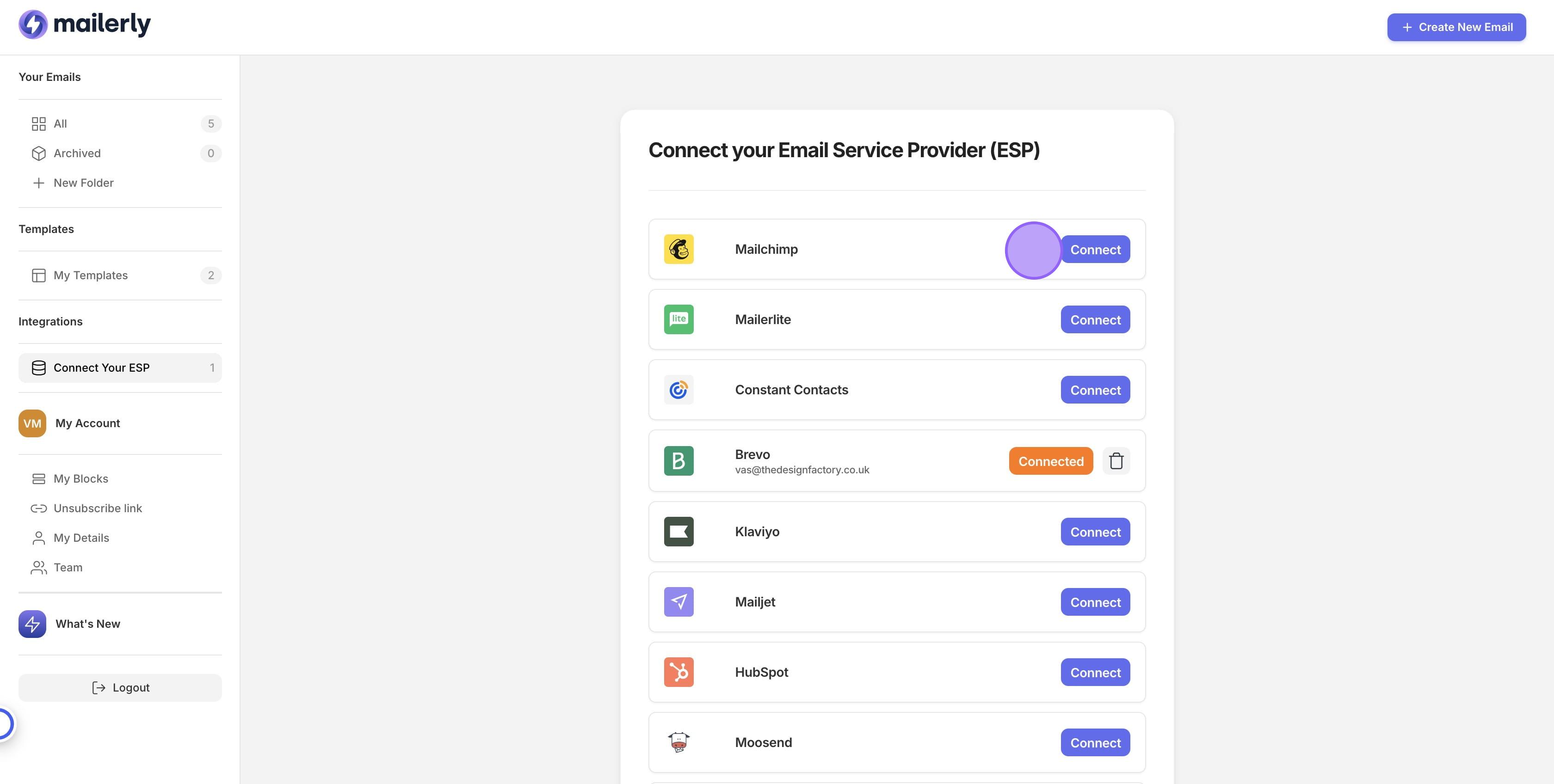
3. Click on "Connect" next to Mailchimp.
4. In the pop up that appears, enter your Mailchimp login details and click Log In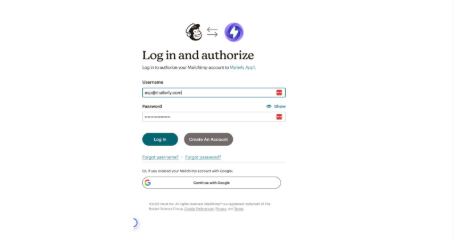
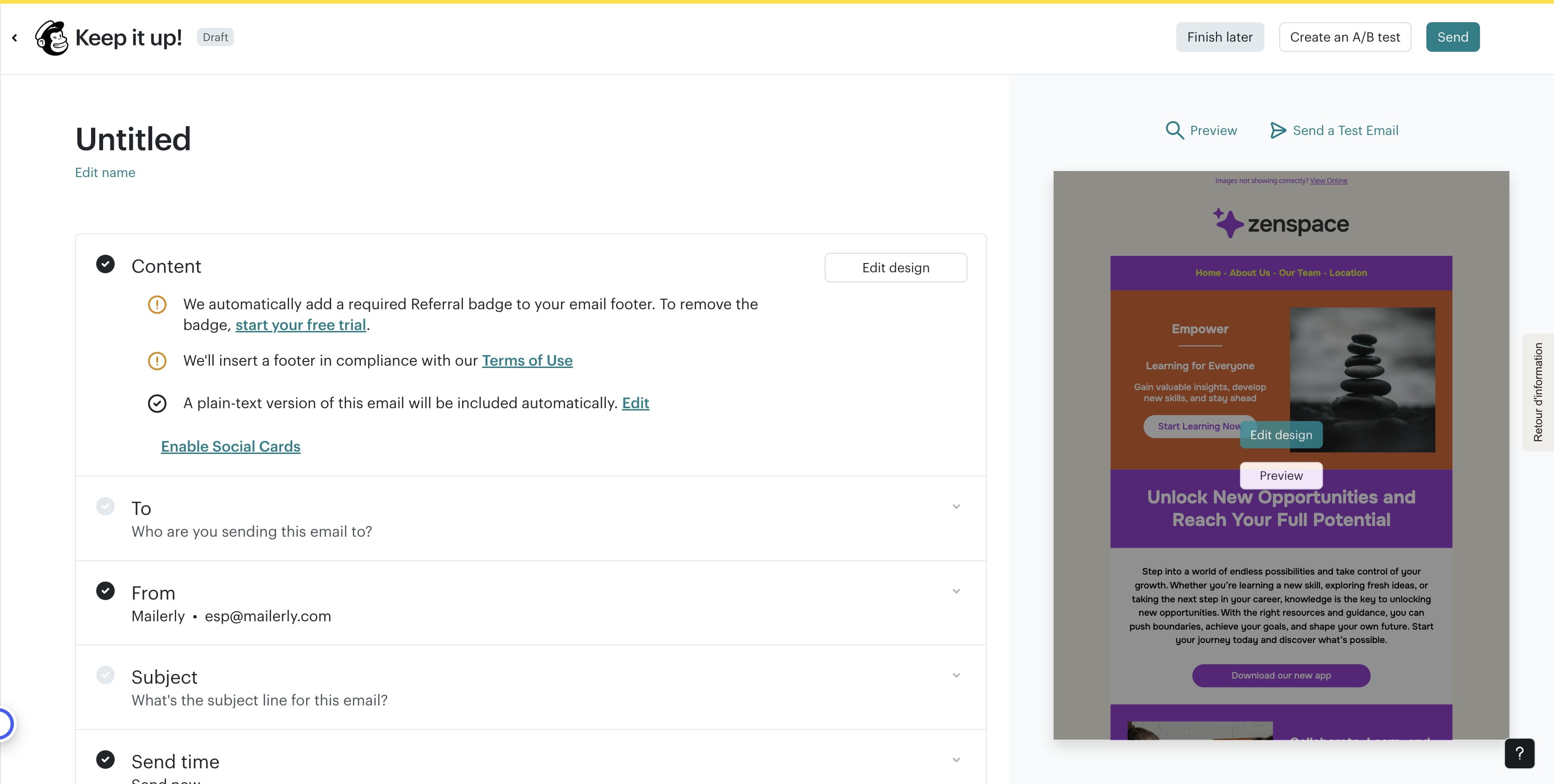
5. You'll be taken back to Mailerly and you'll now see "Connected" next to Mailchimp. Now click "All" to go back to your emails.
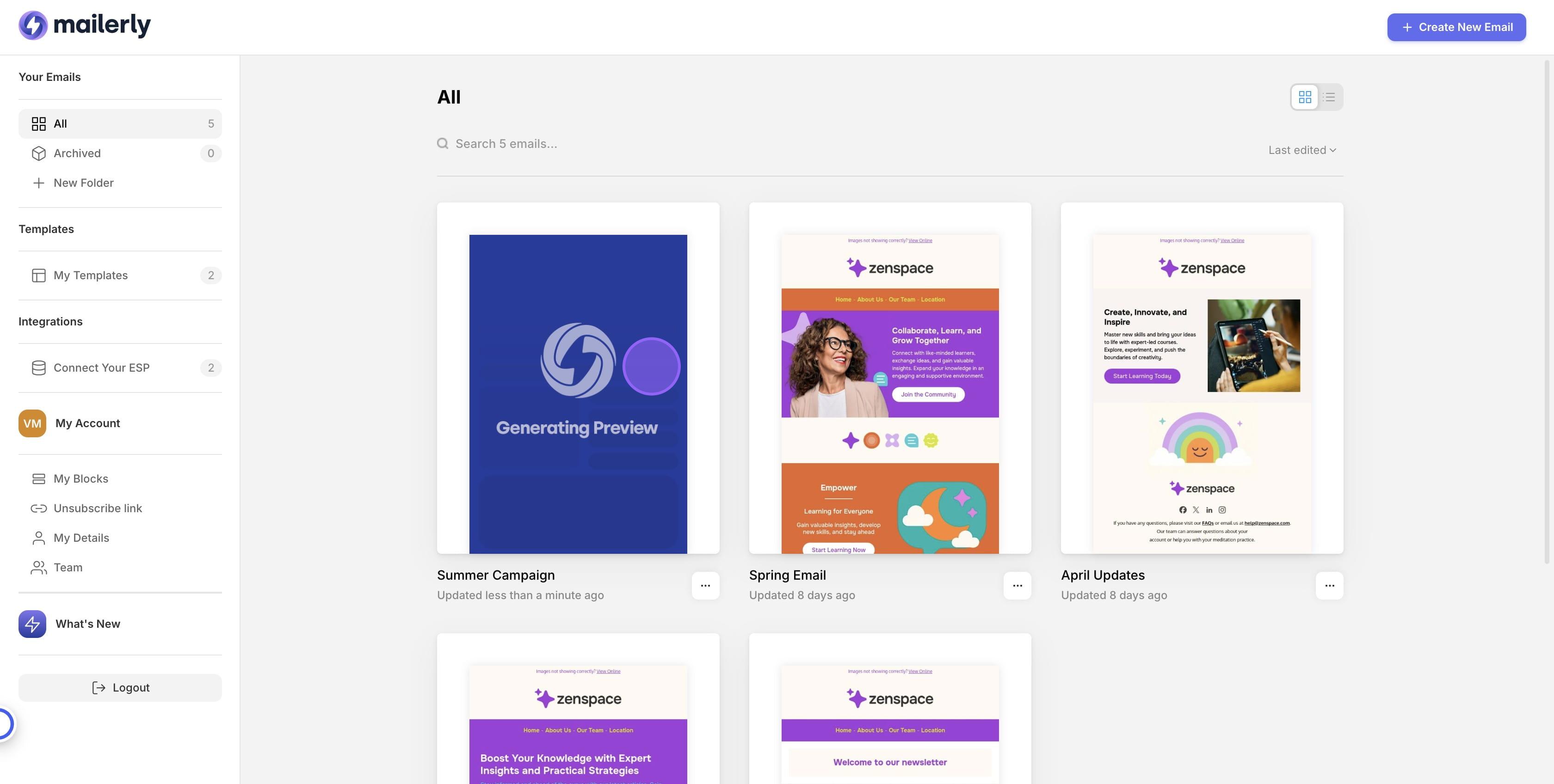
6. Click on the email you want to send to Mailchimp
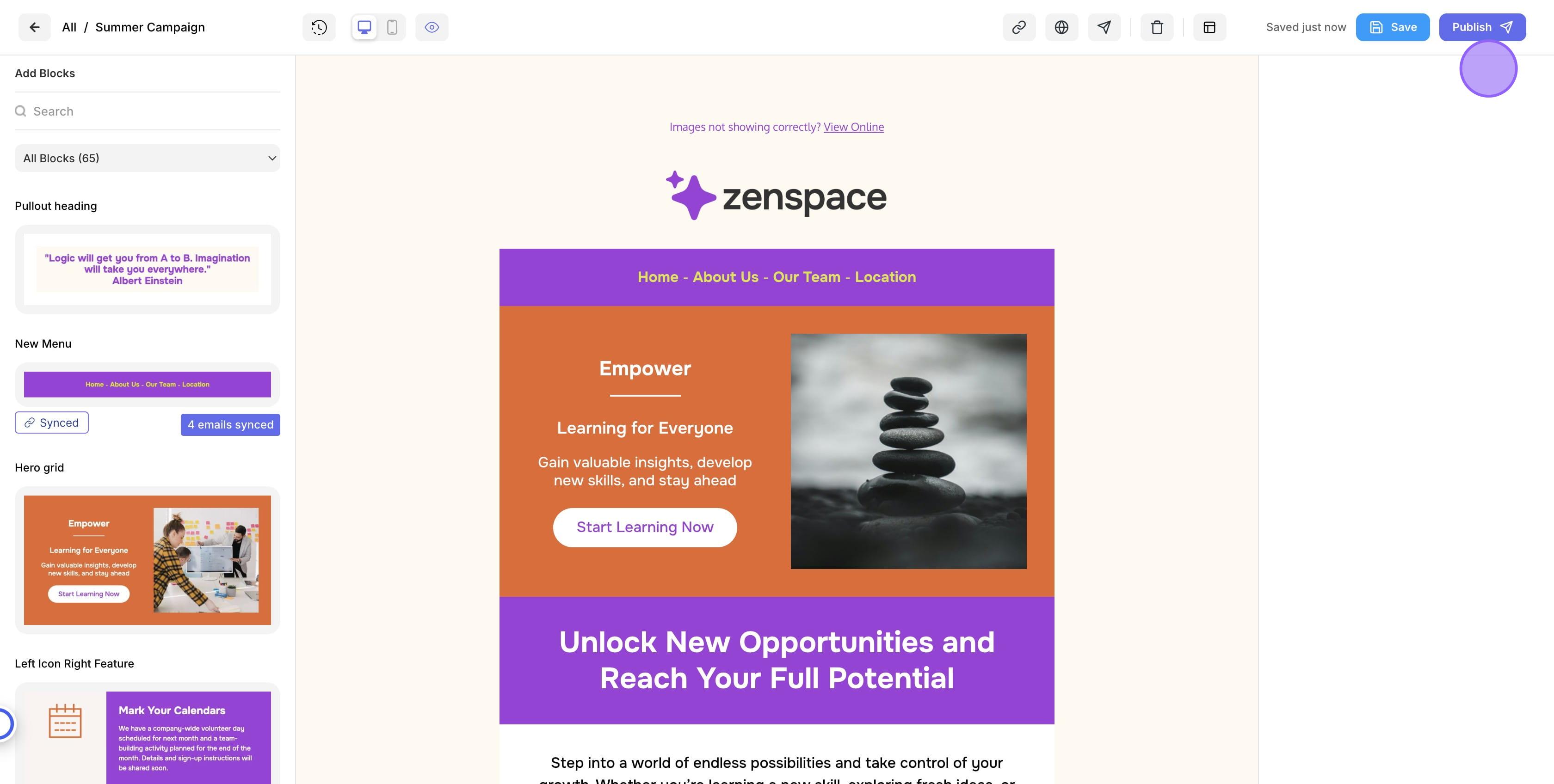
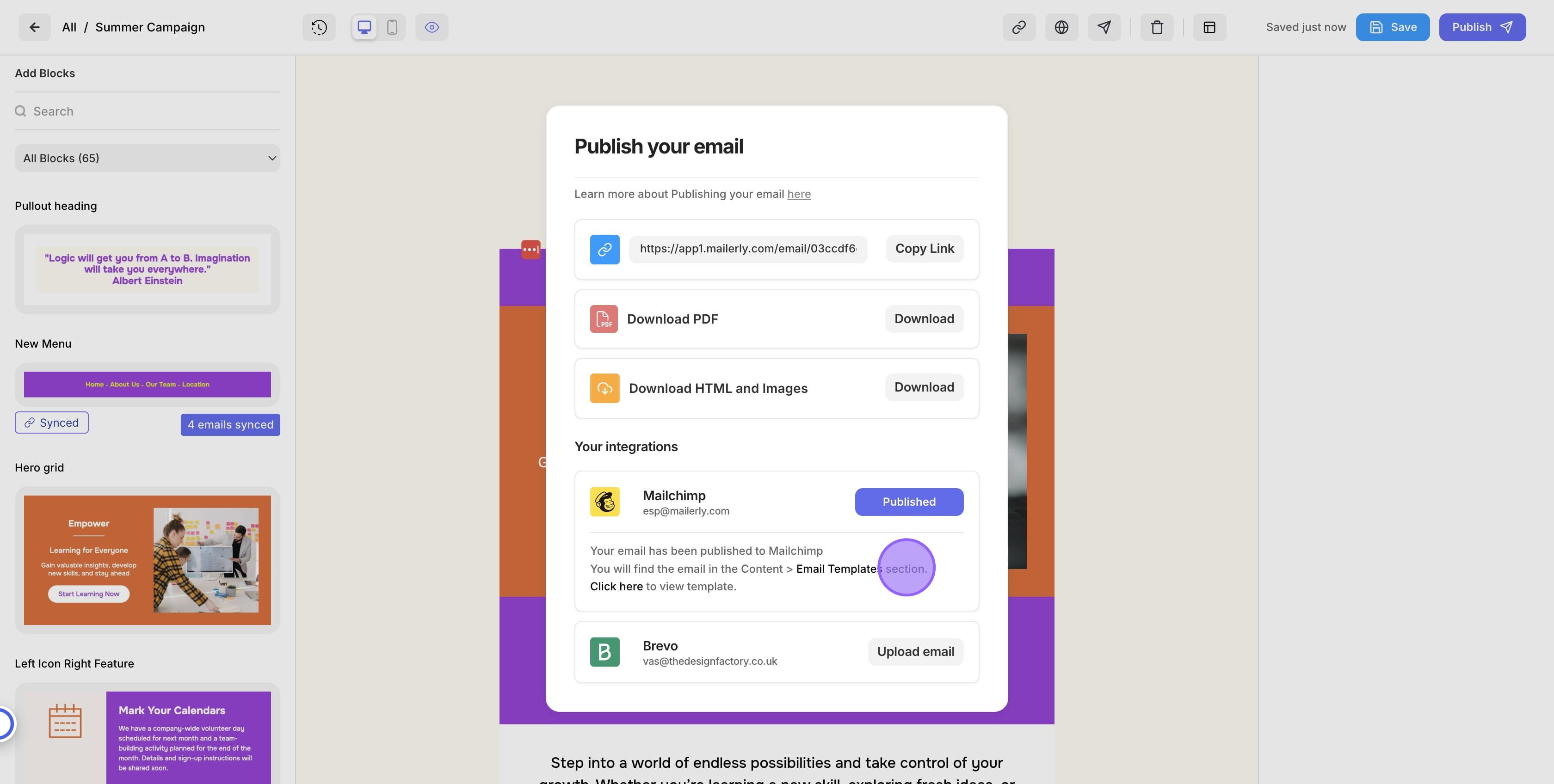
7. Click on "Publish"
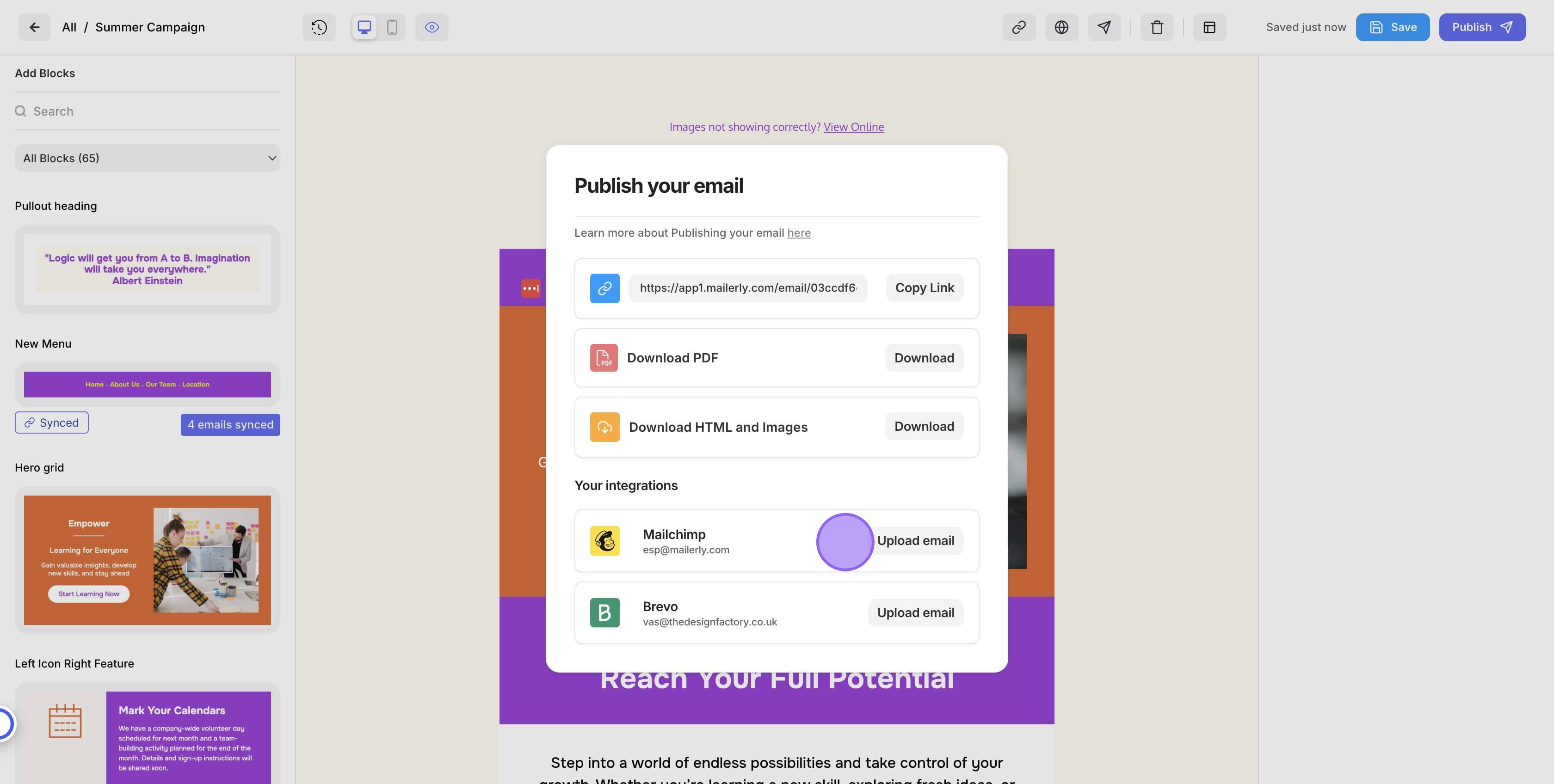
8. Click on "Upload email"
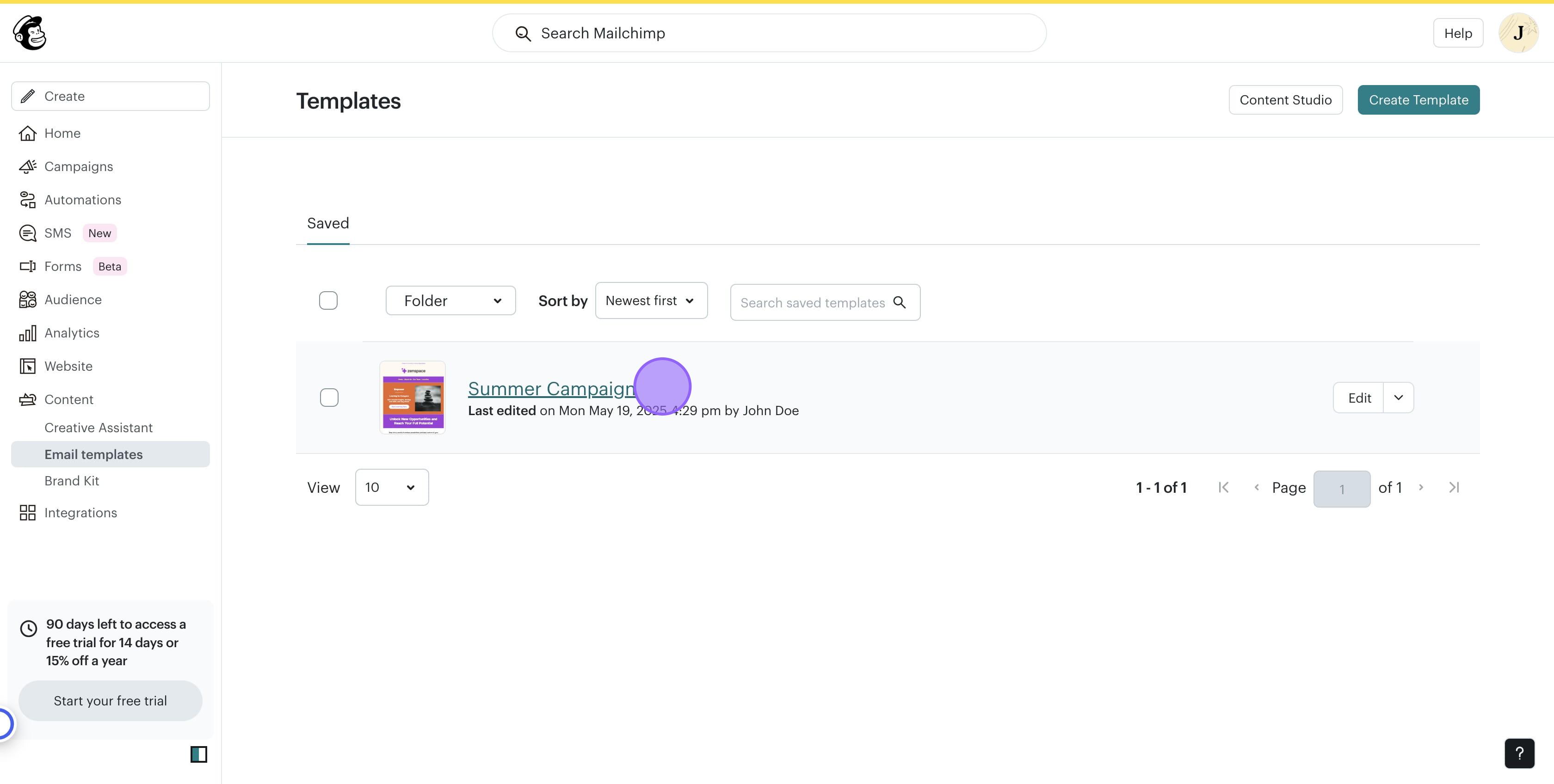
9. Once you see the email has been published, click on "Email Templates" which will take you directly to Mailchimp where your template has been added
10. To view your template click on the email you just imported.
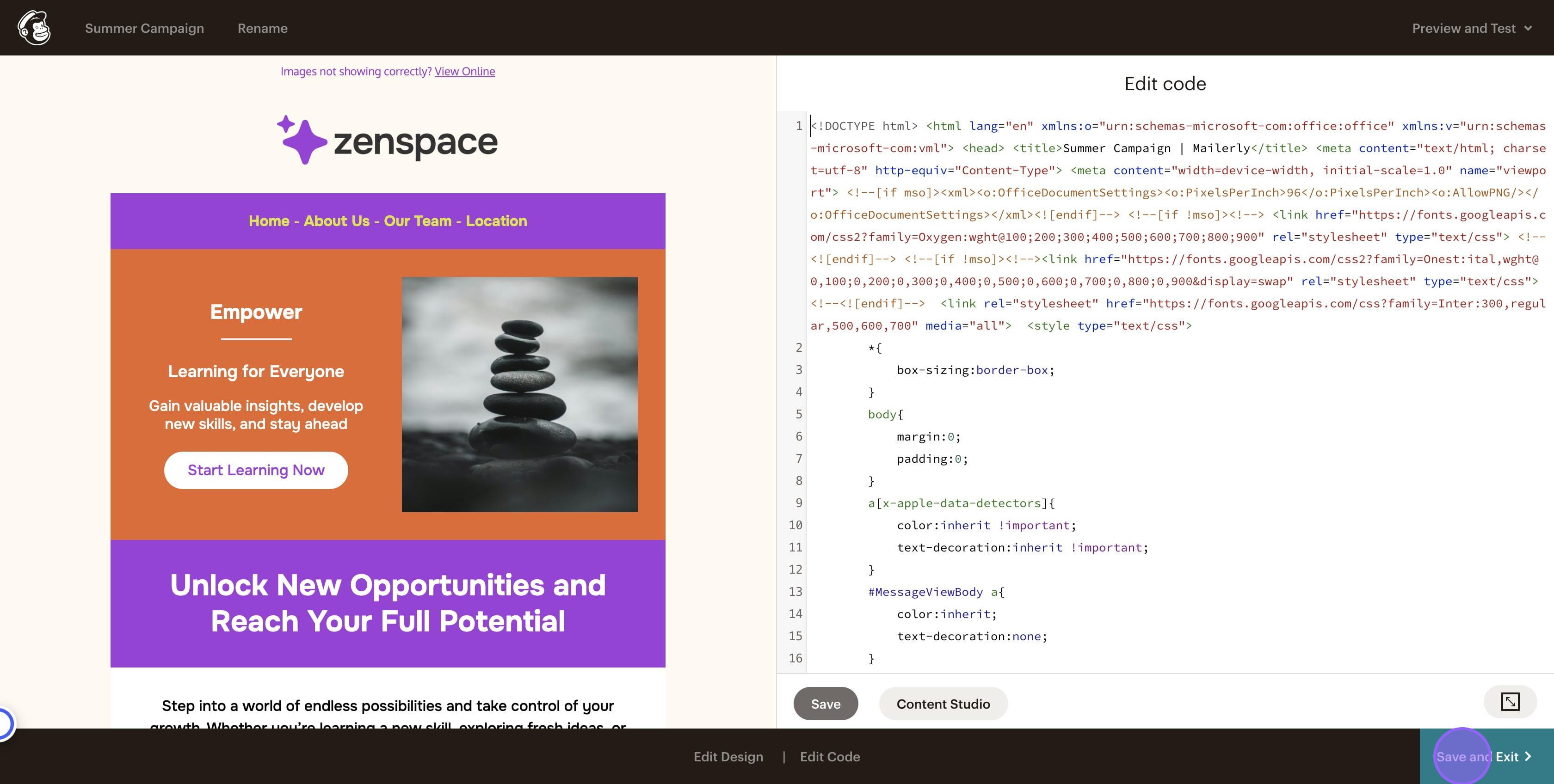
11. Do not try and make any edits within Mailchimp as this could break the email layout.
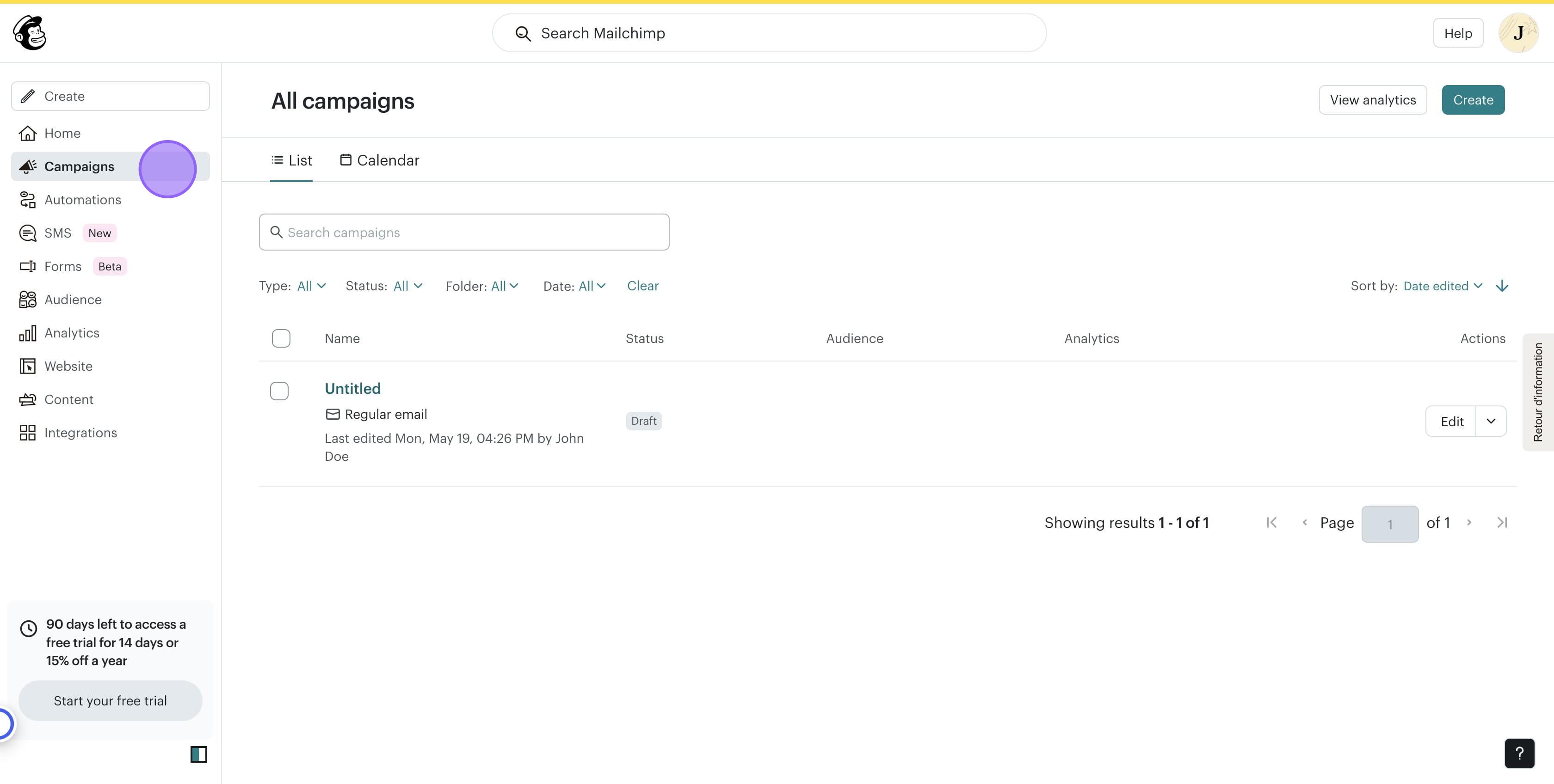
12. Go to Campaigns and now you can start settting up your mailout.
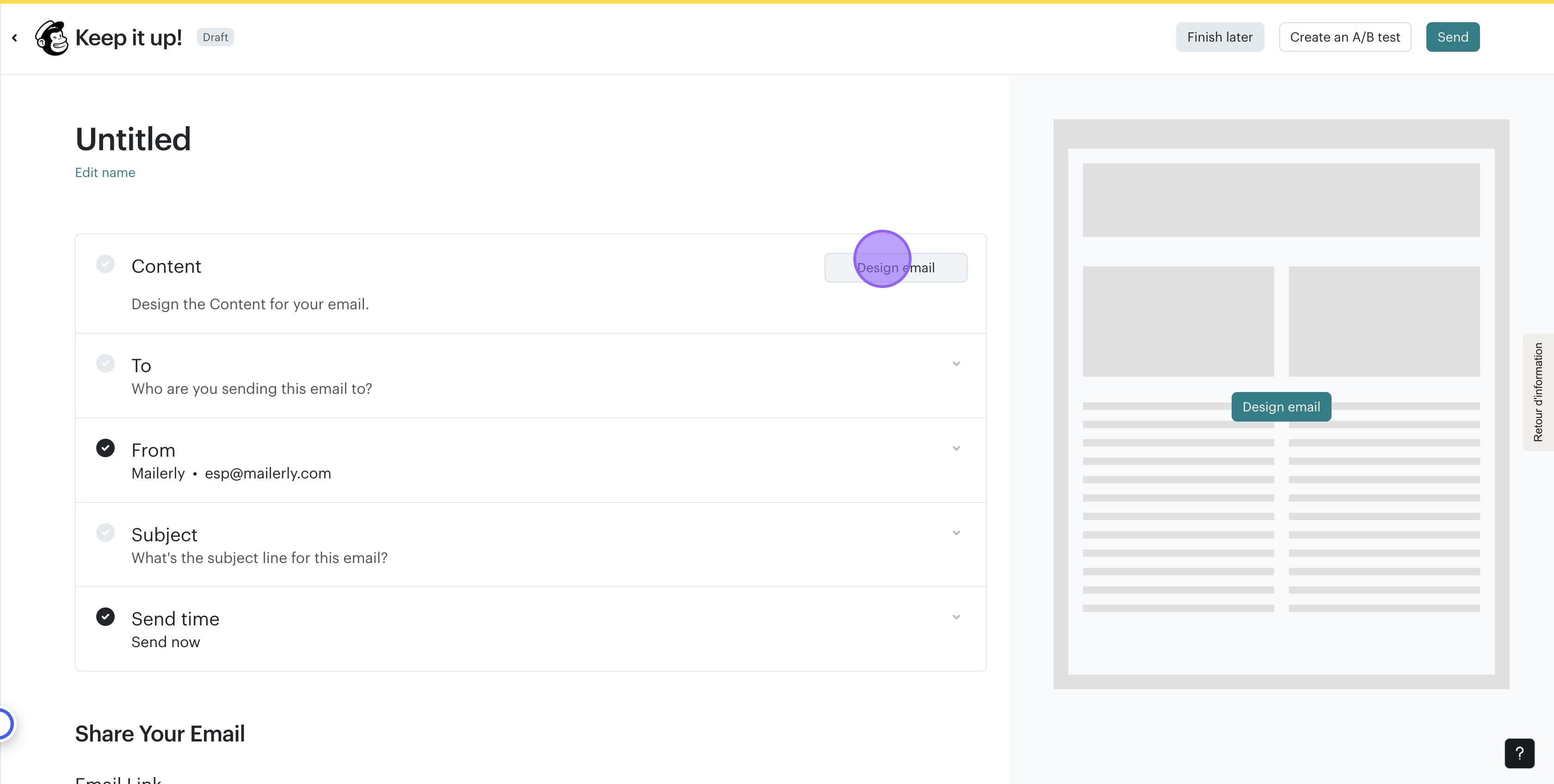
13. Click on "Design email"
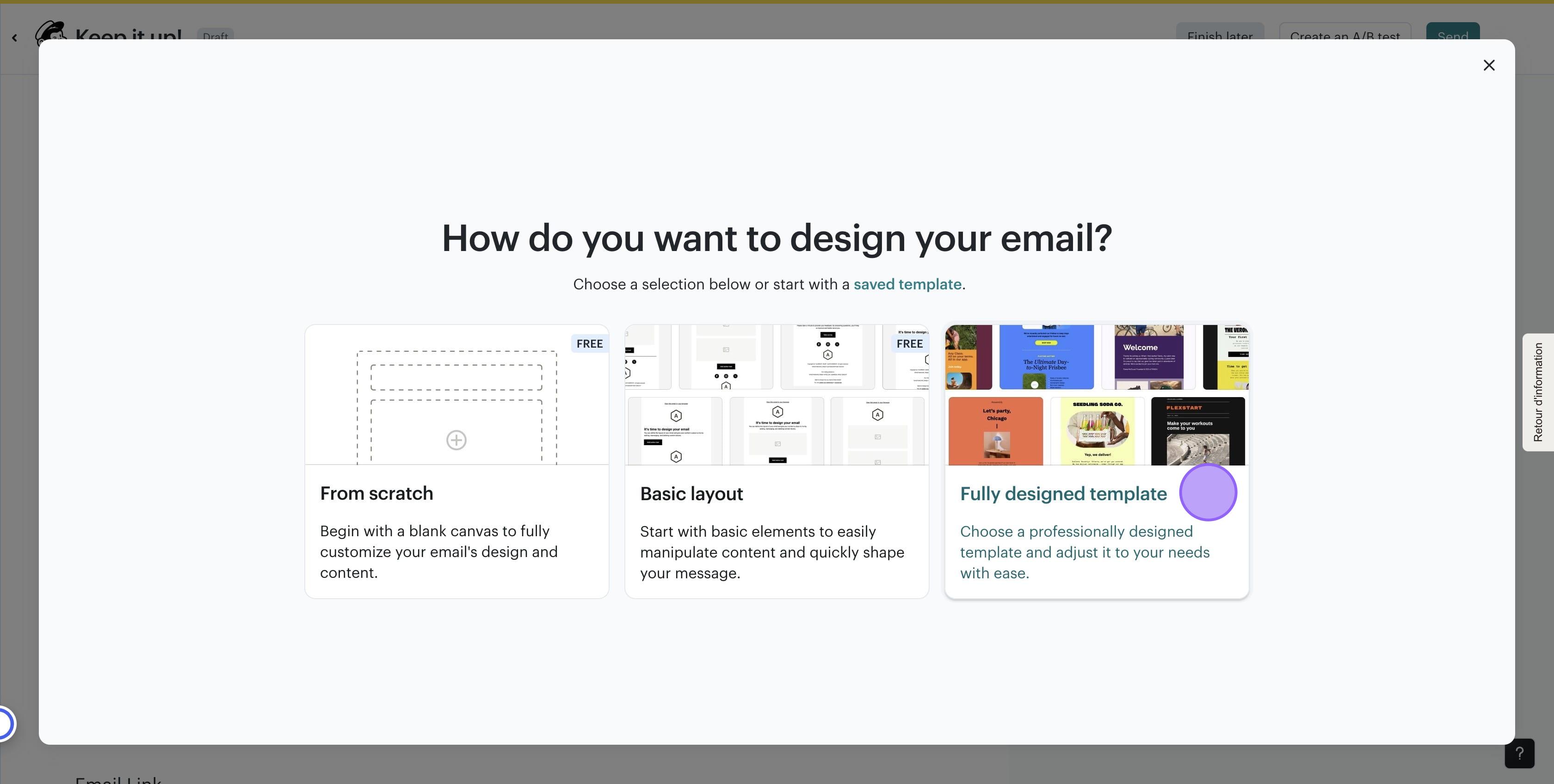
14. Click Fully Designed Template. This is where all your Mailerly designs will be store in Mailchimp
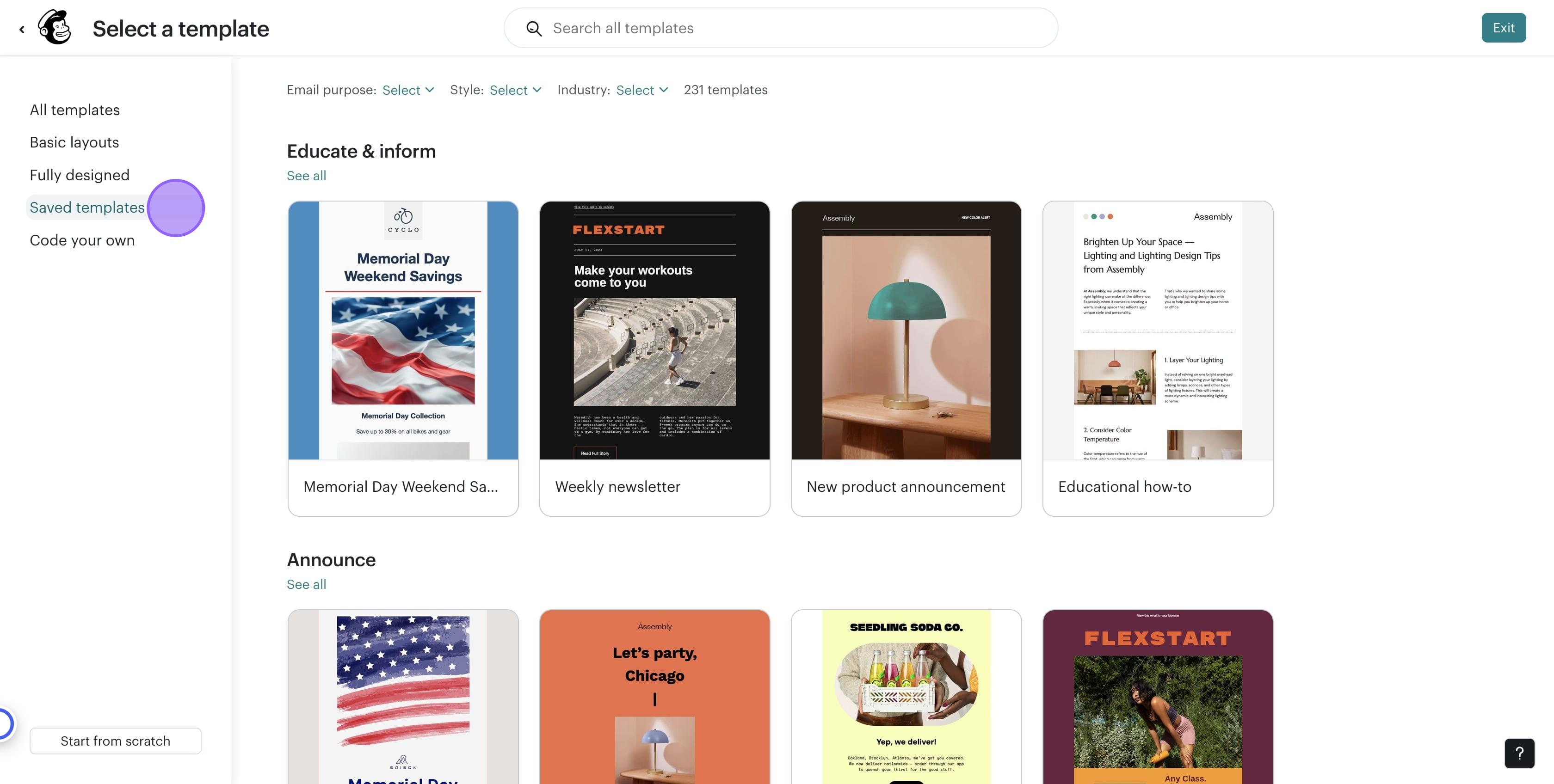
15. Click on "Saved templates"
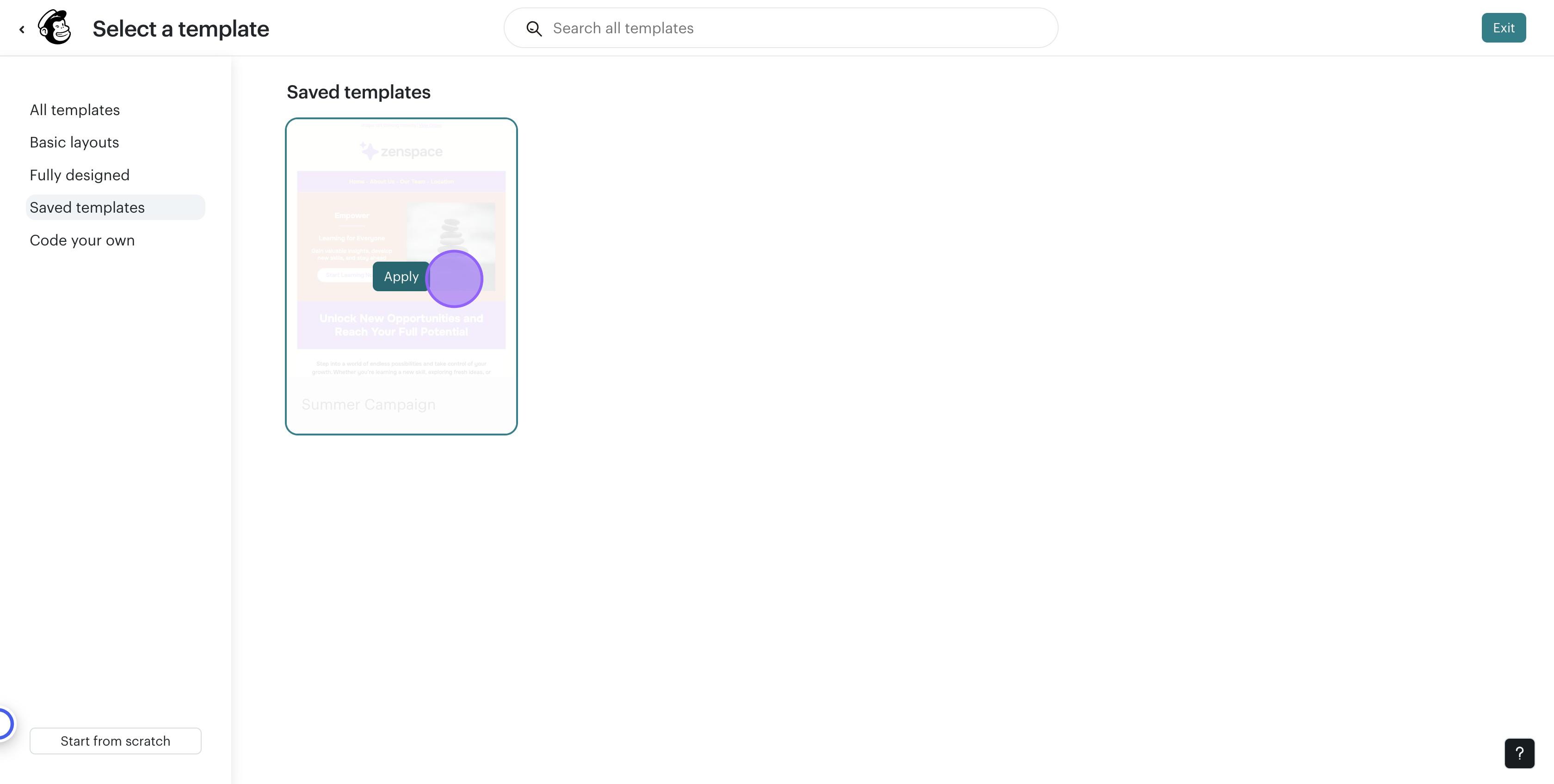
16. Click on "Apply"
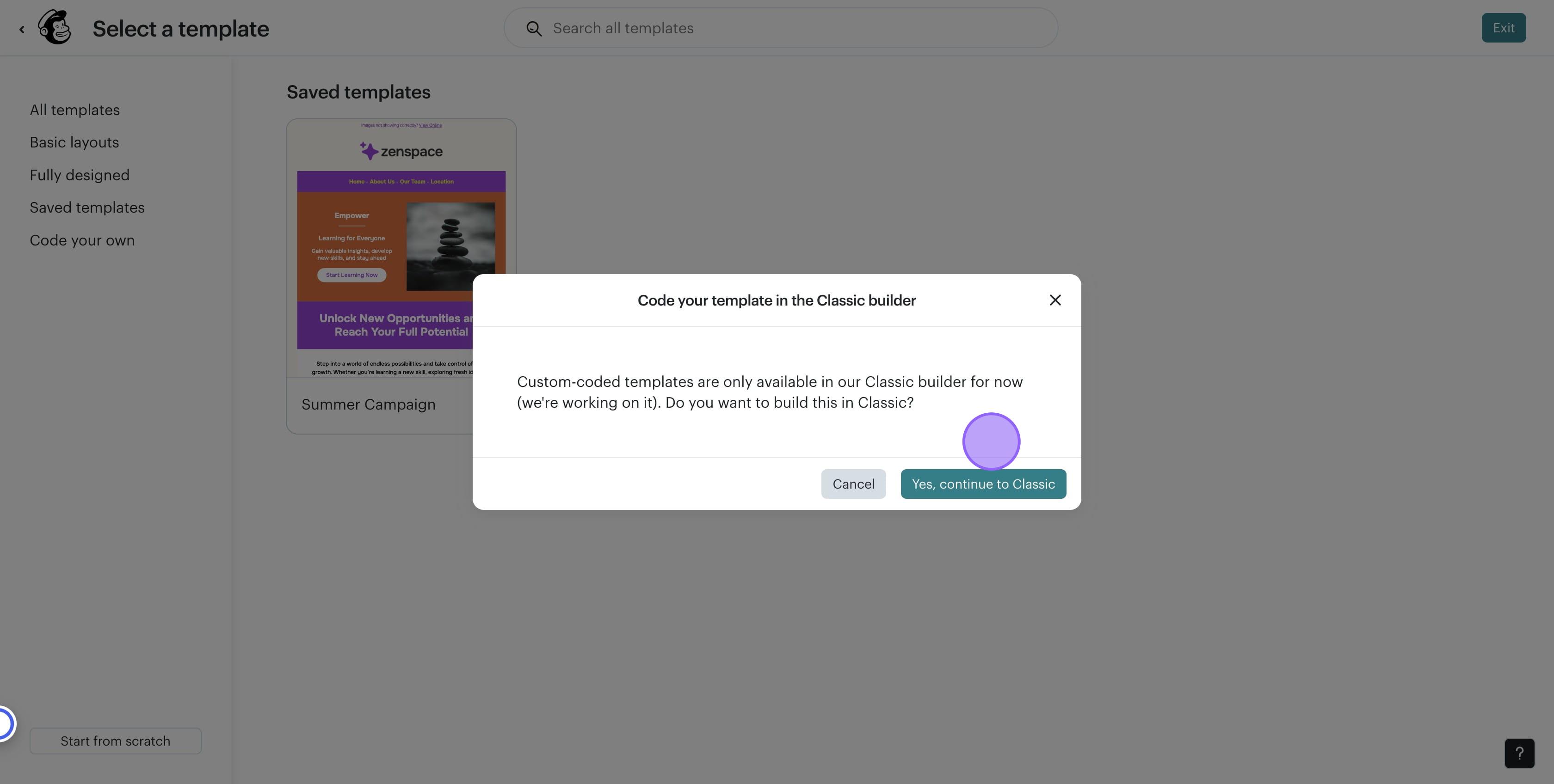
17. Click on "continue to classic"
18. Click on "Continue"
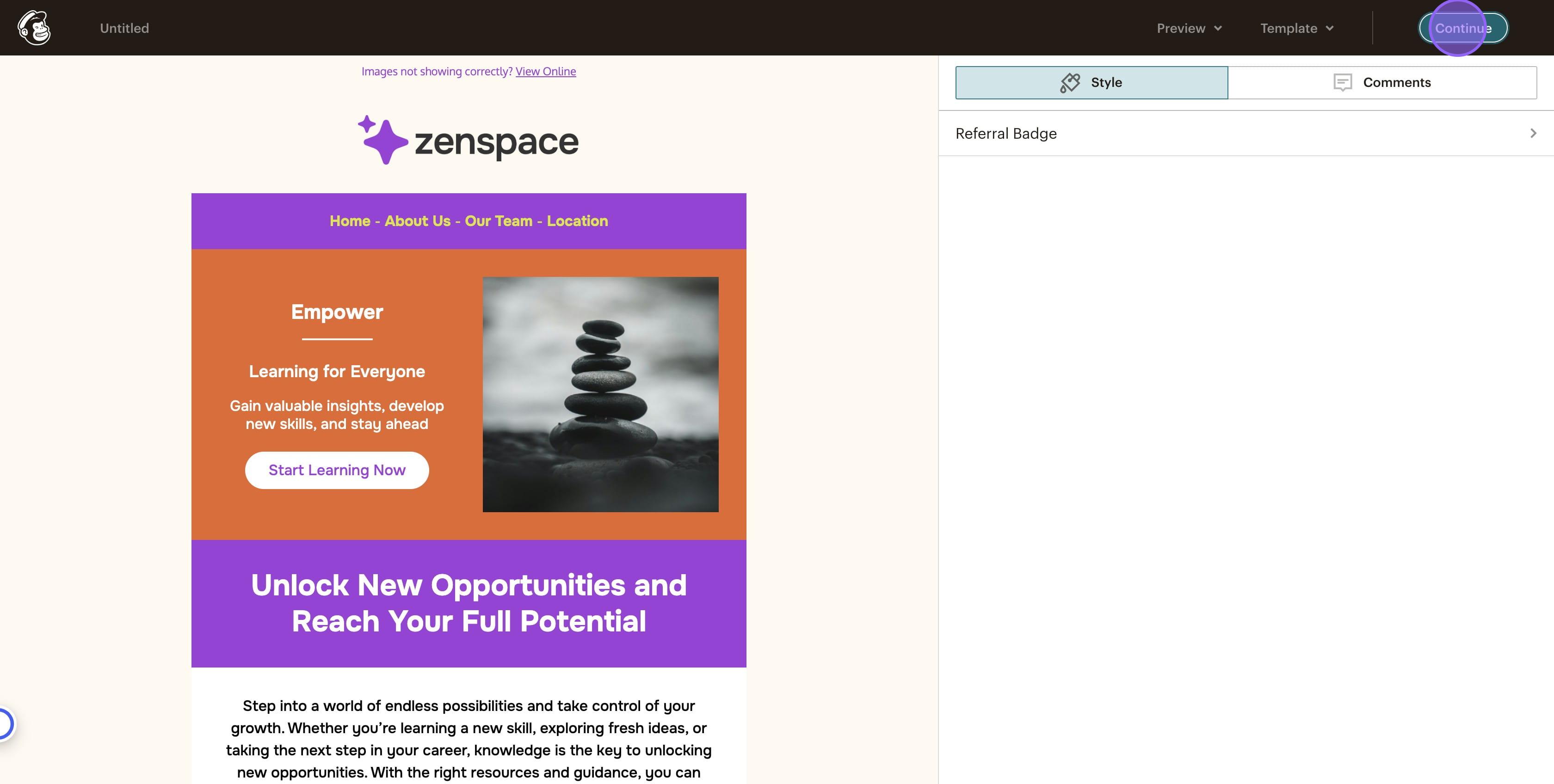
19. Done 🚀 Your campaign is now ready to be sent our in Mailchimp. Set up the rest of the fields as you would normally.